
Several Server Tweaks and Recommendations for CS-Cart Speed Optimization
Before we start talking about increasing performance and CS-Cart speed optimization, it is crucial to define what you want to improve, how, and why. Any optimization means fixing or optimizing the project code or increasing your server capacity, and this already affects the financial side.
All the recommendations and actions for optimizing projects presented in this article can disrupt your store operation. Therefore, we ask you to be as careful as possible in your actions. If something went wrong, cancel your previous actions and seek help from the specialists of CS-Cart or your hosting provider with a description of what caused the problem.
Update CS-Cart Store Builder or Multi-Vendor, all themes and add-ons
Updating the CS-Cart core, themes, and add-ons is important because the new versions contain performance patches, patches to improve and optimize workflows and to fix bugs and vulnerabilities. If you’re planning an eCommerce migration to a new version of CS-Cart or Multi-Vendor, keeping your core, themes, and add-ons up to date ensures a smoother migration process.
Update the PHP version and take advantage of its full potential
Find out what the maximum supported PHP version is available for your current version of CS-Cart Store Builder or Multi-Vendor.
Scalesta conducted load tests for a default CS-Cart theme without third-party add-ons. These tests show that project performance can be increased by updating the PHP version.
| PHP Version | Performance (CS-Cart 4.18 Ultimate) |
|---|---|
| PHP 7.0 (Deprecated) | 107.31 RPS/s |
| PHP 7.1 (Deprecated) | 106.91 RPS/s |
| PHP 7.2 (Deprecated) | 109.82 RPS/s |
| PHP 7.3 (Deprecated) | 116.93 RPS/s |
| PHP 7.4 (Deprecated) | 126 RPS/s |
| PHP 8.0 (Deprecated) | 128 RPS/s |
| PHP 8.1 | 127 RPS/s |
| PHP 8.2 | 129 RPS/s |
| PHP 8.2 + JIT | 132 RPS/s |
Please, note that not all add-ons and CS-Cart versions support the latest PHP versions which may make your project unavailable. Before updating your live store, check the update on your local computer or on the staging server. Alternatively, you can refer to developers.
Use OPcache
How does a PHP app work? PHP opens the files with code, aggregates them, analyzes, assigns tokens, compiles, and then runs them. Since there can be hundreds of such files, the process of opening, reading, and compiling them can be resource-intensive. But because files don’t change very often, it’s inefficient to compile them every time.
This is where OPcache comes in. It saves the result of the compilation to memory so it can be reused, eliminating the need to compile on every request. When your code changes, OPcache automatically invalidates and recompiles the changed files.
It’s worth noting that OPcache is enabled in most PHP builds by default, and in most cases, it doesn’t require any additional configuration. However, this may not apply to all hosting providers — some disable file change checks, which can lead to issues during updates.
Tip: While setting opcache.validate_timestamps=0 in production can reduce overhead by skipping timestamp checks on every request, we do not recommend this approach. Although it may slightly improve performance, especially on older drives, modern SSDs and NVMe disks perform timestamp checks extremely quickly, and the impact on performance is negligible.
More importantly, using outdated cached files after updates can lead to critical errors, particularly if the database structure has changed. This setting also makes debugging significantly harder and can delay problem resolution when contacting support.
A better and more balanced approach is to use opcache.revalidate_freq, which allows for less frequent timestamp checks without sacrificing reliability.
Use FastCGI (PHP-FPM) + NGINX
FastCGI is a highly efficient way to connect PHP with a web server. PHP-FPM (FastCGI Process Manager) works seamlessly with NGINX, and this combination is optimized for performance right out of the box—no extra layers required.
Some legacy setups still rely on Apache with mod_php, or worse, NGINX → Apache (mod_php) → PHP. While Apache supports .htaccess files, which can be convenient for beginner administrators, this flexibility comes at a cost: it typically results in a 3–7% performance drop compared to NGINX + PHP-FPM.
Moreover, when using Apache, it’s important to be aware of potential default configuration vulnerabilities. Excessive reliance on .htaccess, unnecessarily enabled modules, or poorly configured directory listing settings can all introduce security risks. For example, CVE-2021-41773 describes a vulnerability that allowed attackers to bypass access restrictions due to misconfigured Apache settings.
Best Practice: Avoid mod_php entirely. If you must use Apache, connect PHP via php-fpm or mod_proxy_fcgi. This approach delivers better performance, improved security, and aligns with modern PHP deployment standards.
Limit PHP and Tune Runtime Parameters
Contrary to instinct, giving PHP more resources doesn’t always make it faster. Over-allocating can lead to resource contention and unpredictable crashes when the OOM Killer starts terminating processes.
Recommended Defaults:
max_execution_time = 60
Avoid running long scripts by default. Processes like import/export may require higher limits, but it’s better to decompose large tasks into smaller units for better reliability.
memory_limit = 512M
This is a safe upper bound for most stores. Don’t go overboard—remember that MySQL, Redis, and the OS also need memory.
Note: For large stores with lots of products or third-party add-ons, memory_limit = 768M or 1024M may be appropriate. Monitor actual usage before raising it.
Update and Optimize the Database (MySQL)
Convert All Tables from MyISAM to InnoDB
In the latest versions of CS-Cart, there is already a practice in place: all new features, as well as redesigned modules and tables, are created using InnoDB.
This allows the database, during heavy and long-running queries, to lock only the specific rows being accessed rather than the entire table, and also ensures better data integrity thanks to support for transactions and foreign keys.
Below are the main differences between InnoDB and MyISAM:
- InnoDB supports row-level locking, while MyISAM only supports table-level locking.
- InnoDB supports referential integrity, including foreign key constraints (RDBMS), whereas MyISAM does not (DBMS).
- Compared to MyISAM, InnoDB uses a transaction log for automatic recovery and handles high loads more effectively.
Optimize MySQL Settings
Exact values depend on your RAM and workload, but here’s the general direction:
wait_timeout = 60
Long-running queries are typically a sign of poor design. Rewrite or optimize them rather than extending the timeout.
Tip: Use MySQLTuner to check current settings and get suggestions based on real-world usage. It’s an invaluable tool for tuning MySQL.
Consider MariaDB
As of 2025, MariaDB 10.11 LTS is a mature and MySQL-compatible alternative that offers a range of unique features, such as improved handling of virtual columns, advanced storage engines, and system tables in the Aria format.
However, it’s worth noting that in some benchmark comparisons, MySQL 8 has shown better performance in specific scenarios — for example, with complex queries involving JSON.
The best choice depends on your workload: if insert performance, replication, or CPU load are critical, MariaDB may be the better option. For other use cases, MySQL might perform better with careful tuning and optimization.
Increase Server Capacity
Not every website performance issue can be resolved simply by increasing configuration values in PHP, MySQL, or updating server software. At some point, you may need to consider upgrading your server resources or switching to a higher-tier hosting plan. This often becomes necessary due to factors like the installation of additional add-ons, a growing number of products, or simply an increase in website traffic.
We also recommend scaling up server capacity during sales periods or marketing campaigns to handle traffic spikes effectively.
Tip: Consider using cloud or containerized solutions like AWS, DigitalOcean, Docker, or Kubernetes. These platforms offer the flexibility and scalability needed as your project grows.
Use HTTP/2 (and TLS 1.3), and Consider Enabling HTTP/3
In this case, performance and security go hand in hand. HTTP/2, supported by most modern browsers and web servers, brings significant improvements over HTTP/1.1 — such as request multiplexing, header compression, and more efficient connection usage. Many hosting providers and servers (like NGINX and Apache with the proper modules) enable HTTP/2 by default when HTTPS is used.
Practical Steps:
- NGINX: Make sure your configuration includes the ssl http2 directive, e.g.:
listen 443 ssl http2;
- Apache: Ensure mod_http2 and mod_ssl are enabled. Your config should include:
Protocols h2 http/1.1
Consider Enabling HTTP/3 (Based on QUIC)
HTTP/3, built on QUIC, can further improve performance — especially in high-latency conditions or on mobile networks.
Support is already available in many CDNs (like Cloudflare and Fastly) and modern browsers. Web servers such as NGINX (via the quiche library) and Caddy also support HTTP/3, although additional configuration is required.
Enable TLS 1.3 for Better Security and Speed
TLS 1.3 is strongly recommended. It enhances security while also speeding up connection setup thanks to its reduced handshake process.
How to Enable TLS 1.3:
- NGINX: Make sure you’re using OpenSSL 1.1.1+ and your config includes:
ssl_protocols TLSv1.3 TLSv1.2;
- Apache: With Apache 2.4.38+ and OpenSSL 1.1.1+, use:
SSLProtocol -all +TLSv1.2 +TLSv1.3
You can verify support using tools like SSL Labs Test or similar SSL checkers.
Tip: HTTP/3 (QUIC-based) can deliver even greater performance benefits, especially for mobile users and high-latency connections. Most modern browsers and CDNs already support it.
Also, be sure to enable TLS 1.3 — it offers both stronger security and faster data exchange thanks to reduced handshake overhead.
CS-Cart tweaks and options
If, after making changes, your project becomes unavailable, cancel the changes and contact CS-Cart technical support and your hosting provider. They will help you with the setup.
Use Imagick
GD and Imagick are two different PHP extensions to handle graphics. Both modules are quite similar, but Imagick gives better results when creating thumbnail images. At the same time, it consumes less memory.
To enable Imagick, change the tweak value to imagick in the $config[‘tweaks’] array of the config.local.php file. See this screenshot.
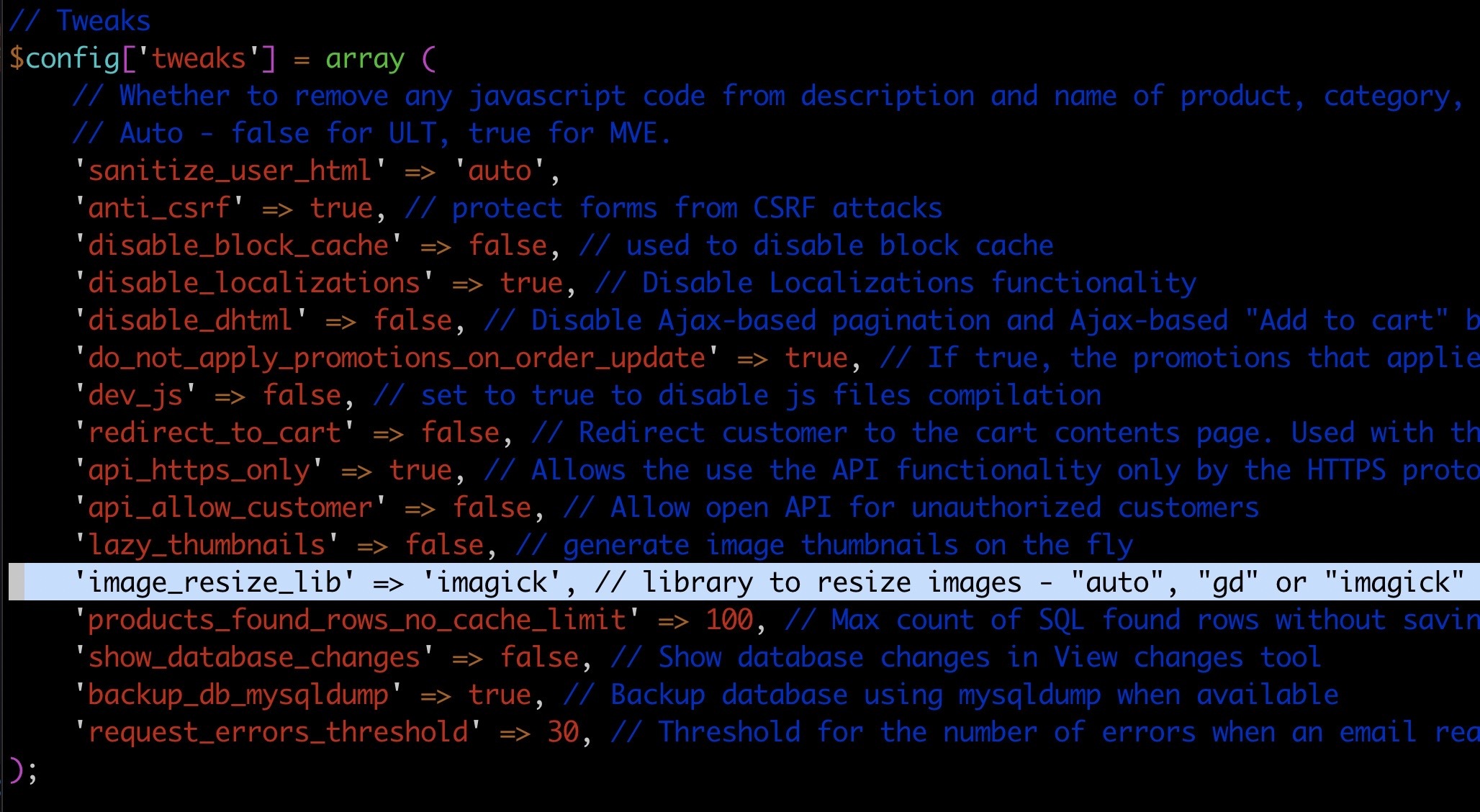
Enable Imagick:
‘image_resize_lib’ => ‘imagick’,
Note: If Imagick is not installed on the server, explicitly forcing its use may cause errors. You should implement a check to ensure the component is available before using it.
Also note that if you have “auto” in your config.local.php file next to image_resize_lib, then once you have imagick installed, it will be used by default.
Enable APCu for cache and Redis for storing sessions
We recommend using APCu for caching in CS-Cart and Redis for storing user sessions. This separation helps reduce the load on the database and file system, speeding up request handling and improving overall application responsiveness.
However, it’s important to consider that introducing additional services like Redis increases the complexity of your infrastructure. It adds another potential point of failure, which also needs to be monitored and managed — for example, using tools like systemd or supervisord to ensure availability and automatic restarts.
Additionally, storing cache in APCu means it will be held in the memory of each PHP process. This can increase overall RAM usage and may affect performance on systems with limited resources. APCu also works only with mod_php or php-fpm, and is not suitable for multi-server configurations where shared cache is required.
Before adopting this approach, ensure your infrastructure is prepared to handle these specifics and that all components can operate reliably.
$config['cache_backend'] = 'apcu';
$config['session_backend'] = 'redis';
Enabling these settings in your configuration file requires APCu (PHP 7.0+) and Redis to be properly installed and configured on your server. Before editing the configuration, make sure both APCu and Redis are available. If you’re unsure or need assistance, consult your system administrator or hosting provider.
Use mysqldump for backup
Mysqldump is a server-side utility available on most modern hosting environments, and it’s widely recommended by system administrators for creating database backups. For reliable backups, it’s best to use mysqldump.
In CS-Cart, support for mysqldump is available, but disabled by default. This is because on some hosting platforms, mysqldump may be unavailable, unstable, or require elevated permissions. As a result, CS-Cart uses a built-in PHP-based backup method by default, which offers broader compatibility but may be less efficient for large databases.
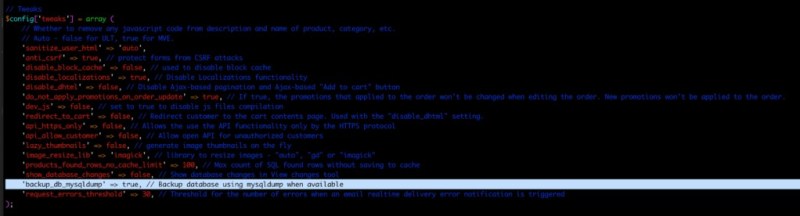
To enable mysqldump for backups, add the following parameter:
$config['tweaks']['backup_db_mysqldump'] = true;
to the $config[‘tweaks’] array in your config.local.php file.
Once enabled, CS-Cart will use mysqldump to create database backups — a faster and more resource-efficient method, especially beneficial for large projects, as it reduces the load on PHP processes during the backup operation.
Implement a backend lock in the cache generation processes
In recent versions of CS-Cart, a new feature has been introduced to prevent simultaneous cache generation by multiple users. This is especially useful under high load conditions — for example, after clearing the cache or on the first run after deployment.
To enable this protection, add the following line to your config.local.php file:
$config['lock_backend'] = 'database';
With this setting, CS-Cart will use the database to store lock information, preventing concurrent execution of resource-intensive operations.
Redis is also supported as a lock storage backend, which is recommended for high-load projects, especially in distributed environments. To enable Redis locking, use:
$config['lock_backend'] = 'redis';
Important: Make sure Redis is available and properly configured in your CS-Cart installation. Using Redis can improve performance and reduce database load when handling locks.
This mechanism not only helps prevent server overload during cache generation, but also ensures correct order processing. In recent CS-Cart versions, the locking system is also used when interacting with payment systems like Stripe and PayPal. Without active locking, order statuses may be updated incorrectly, potentially leading to inventory inconsistencies and other critical issues in business logic.
How to find and fix problems with CS-Cart performance without programming skills
Even without coding skills, you can identify and fix performance bottlenecks in your CS-Cart or CS-Cart Multi-Vendor store. Below are practical tips and metrics to help you perform basic diagnostics on your own.
Use the Built-In CS-Cart Debugger
CS-Cart includes a built-in debug mode, which can be activated by adding ?debug to the URL. Once enabled, a “bug” icon will appear in the top right corner. Clicking it will reveal detailed information:
- SQL — number and execution time of database queries
- Blocks — block loading speed and memory usage
- Page generation time — total time to render the page
Key Metrics to Monitor
| Metric | Recommended Value |
|---|---|
| Page generation time | ≤ 1 sec — excellent performance 1–2 sec — normal for most projects > 2 sec — a reason to review and optimize |
| Database query time | ≤ 0.1 sec — good performance > 0.1 sec — check the query and optimize indexes |
| Number of blocks from cache | ≥ 5 out of 20 — acceptable, but the more blocks served from cache, the better the performance |
| Block render time | ≤ 0.1 sec — fast0. 1–2 sec — acceptable but should be monitored> 2 sec — a reason for a detailed investigation |
Tip: Enable the debugger and click through pages — you’ll see which blocks or modules are slow and where the bottlenecks are.
Check Caching Settings
Go to Design → Themes in the admin panel and verify whether “Rebuild cache automatically” is turned off.
If your site is live and you’re not constantly editing templates, this option should be disabled.
In config.local.php, ensure this is set:
$config['tweaks']['disable_block_cache'] = false;
Sometimes, developers accidentally leave caching disabled, which can drastically reduce performance.
Optimize Images
- Run your site through Google PageSpeed to identify large images.
- Right-click an image → Inspect Element to view actual vs. displayed size.
- Use lossless image compression tools like tinypng.com, imagecompressor.com, and DupliChecker.com to easily compress JPEG to 50kb without losing quality..
Review Add-Ons
Some third-party add-ons can generate hundreds of SQL queries, especially on pages with many entities (products, brands, etc.).
What to do:
- Enable the debugger and go to a slow page.
- Check the SQL tab to see which blocks or add-ons are generating long or excessive queries.
- In the Blocks tab, identify which blocks take the longest to load.
- Go to Add-ons → Manage add-ons, disable suspicious ones, and retest performance.
- If you have many third-party add-ons, disable all, then re-enable them one by one to isolate the culprit.
Review Cron Jobs & External Syncs
Tasks like backups, third-party sync, or email campaigns may run during peak hours and strain your server.
Tip: Schedule cron jobs during off-peak hours (e.g., nighttime), based on your traffic analytics.
Focus on Metrics — Not Just Scores
Tools like Google PageSpeed can give misleading results, especially under mobile testing conditions. Even large-scale eCommerce sites often score low, which doesn’t always reflect actual user experience.
Tips:
- Monitor metrics regularly.
- Compare results before and after changes.
- Don’t rely solely on test scores — observe real-world behavior.
Summary & Best Practices:
- Disable “Rebuild cache automatically” unless you’re actively developing.
- Make sure disable_block_cache is not set to true by mistake.
- Compress images, especially on the homepage and product pages.
- Audit and disable heavy add-ons that slow down SQL or block rendering.
- Use the built-in debugger and think critically about performance metrics.
Advice from Andrey Myagkov, CTO of CS-Cart:
“Don’t obsess over test scores—focus on real-world metrics and user experience. A low PageSpeed score doesn’t necessarily mean your site is slow. Consider where your server is physically located and where your users are. If your store is hosted in Australia, but your customers are in Europe, delays will come from distance, not poor optimization. In many cases, simply hosting a copy of your site closer to your audience can make a big difference. Remember—tests are a guide, not a final verdict.”
You can find tips for quick optimization and finding performance issues for your CS-Cart Store Builder and CS-Cart Multi-Vendor project without programming skills in this post. And we also have an article with important metrics telling about factors affecting the site speed.
All CS-Cart Products and Services
- ★ CS-Cart Multi-Vendor: free online demo
- ★ CS-Cart Store Builder: free online demo
- ★ Mobile App: App Store, Google Play
- ★ Cloud Hosting: why it’s the best for CS-Cart
- ★ Customer Care: why it’s more than just a tech support
- ★ Upgrade subscription: select and reactivate

Gayane is a passionate eCommerce expert with over 10 years in the industry. Her extensive experience includes marketplace management, digital marketing, and consumer behavior analysis. Dedicated to uncovering the latest eCommerce trends, she ensures her readers are always informed about industry developments. Known for her analytical skills and keen eye for detail, Gayane's articles provide actionable insights that help businesses and consumers navigate the ever-evolving digital commerce landscape.